
Copy your
MCP server URL
Open Integrations in your PicoPixel account, then copy your personal MCP server URL.
https://app.picopixel.io/mcp/stream?userToken=<YOUR_PRIVATE_TOKEN>Połącz asystenta AI z serwerem PicoPixel LVGL MCP. Twórz i edytuj ekrany, widżety, motywy, czcionki i ikony bezpośrednio w otwartym projekcie.
Open Integrations in your PicoPixel account, then copy your personal MCP server URL.
https://app.picopixel.io/mcp/stream?userToken=<YOUR_PRIVATE_TOKEN>In Claude desktop or claude.ai, go to Customize → Connectors. Name it PicoPixel and paste the URL.
Ask Claude to use the PicoPixel LVGL MCP server to create or edit an LVGL interface.
Open Integrations in your PicoPixel account, then copy your personal MCP server URL.
https://app.picopixel.io/mcp/stream?userToken=<YOUR_PRIVATE_TOKEN>Open ChatGPT Plugins, click Add (+) → Add Custom MCP Server, then name it PicoPixel and paste your copied URL into Server URL.
Create and install the custom plugin, then ask ChatGPT to use the PicoPixel LVGL MCP server to create or edit an LVGL interface.
Open Integrations in your PicoPixel account, then copy your personal MCP server URL.
https://app.picopixel.io/mcp/stream?userToken=<YOUR_PRIVATE_TOKEN>Replace <server-url> in the command below with the URL you copied, then paste the completed command into Claude Code and run it. Ask Claude Code to use the PicoPixel LVGL MCP server to create or edit an LVGL interface.
claude mcp add --transport http PicoPixel-LVGL "<server-url>"Open Integrations in your PicoPixel account, then copy your personal MCP server URL.
https://app.picopixel.io/mcp/stream?userToken=<YOUR_PRIVATE_TOKEN>Replace <server-url> in the command below with the URL you copied, then paste the completed command into OpenClaw and run it. Ask OpenClaw to use the PicoPixel LVGL MCP server to create or edit an LVGL interface.
openclaw mcp add PicoPixel-LVGL --url "<server-url>" --transport streamable-httpOpen Integrations in your PicoPixel account, then copy your personal MCP server URL.
https://app.picopixel.io/mcp/stream?userToken=<YOUR_PRIVATE_TOKEN>Replace <server-url> in the command below with the URL you copied, then paste the completed command into Hermes and run it. Ask Hermes to use the PicoPixel LVGL MCP server to create or edit an LVGL interface.
hermes mcp add PicoPixel-LVGL --url "<server-url>"Open Integrations → MCP client JSON configuration → Copy Config.
{"mcpServers":{"picopixel-lvgl":{"url":"https://app.picopixel.io/mcp/stream?userToken=<YOUR_PRIVATE_TOKEN>"}}}{
"mcpServers": {
"picopixel-lvgl": {
"url": "https://app.picopixel.io/mcp/stream?userToken=<YOUR_PRIVATE_TOKEN>"
}
}
}Add the copied config to your client’s MCP settings and save.
Ask your assistant to use the PicoPixel LVGL MCP server to create or edit an LVGL interface.
Utwórz panel ze wszystkimi danymi zdrowotnymi z mojego Apple Watch: aktywnością, tętnem, snem i codziennymi celami.
Sprawdzę projekt i dostępne narzędzia, a następnie wprowadzę zmiany.
Sprawdzenie połączenia i dostępu do otwartego projektu.
Zapoznanie się z obsługą edytora LVGL PicoPixel.
Wyszukanie narzędzi i operacji potrzebnych do wykonania polecenia.
Sprawdzenie obecnych ekranów, widżetów i dostępnych zasobów.
Projekt jest gotowy. Dodam układ i treść, a następnie dopracuję wygląd.
Tworzenie i rozmieszczanie widżetów.
Ustawianie czcionek, kolorów i odstępów.
Zmiany zostały wprowadzone. Na koniec sprawdzę gotowy ekran.
Ponowny odczyt zmienionych widżetów w celu sprawdzenia wyniku.
Zmiany są gotowe w edytorze PicoPixel. Możesz je sprawdzić i kontynuować pracę.
Gotowe w PicoPixel
Nadaj temu panelowi wyścigowemu jasny motyw w ciepłych kolorach, z pomarańczowymi akcentami. Zachowaj układ i zadbaj o czytelność wskaźników.
Sprawdzę style panelu, a następnie utworzę jasny, ciepły motyw z pomarańczowymi akcentami.
Sprawdzenie połączenia i dostępu do otwartego projektu.
Wyszukanie zasobów motywu i operacji na stylach.
Sprawdzenie kolorów, wskaźników i pasków postępu w panelu.
Użyję ciepłego, kremowego tła, ciemnego tekstu i pomarańczowych wyróżnień.
Tworzenie kolorów tła, tekstu i akcentów do ponownego wykorzystania.
Zastosowanie palety do wskaźników, etykiet i pasków postępu.
Paleta jest już zastosowana. Sprawdzę kontrast i spójność kolorów w całym panelu.
Sprawdzenie zmienionych stylów i potwierdzenie, że układ pozostał bez zmian.
Jasny motyw jest gotowy. Wskaźniki i paski postępu mają wspólne pomarańczowe akcenty, a układ pozostał bez zmian.
Gotowe w PicoPixel
Wygeneruj czcionki Doto, Playfair i JetBrains Mono w rozmiarach 12, 18 i 24 px. Dodaj ikony kolorowe i konturowe, a następnie pokaż wszystko na jednym ekranie.
Najpierw wygeneruję czcionki w podanych rozmiarach, a potem dodam ikony z kilku zestawów.
Utworzenie czcionki Doto w rozmiarach 12, 18 i 24 px oraz dodanie jej próbek.
Utworzenie czcionki Playfair w tych samych trzech rozmiarach.
Dodanie czcionki JetBrains Mono i uzupełnienie zestawu próbek.
Próbki czcionek są gotowe. Teraz dodam ikony kolorowe i konturowe.
Dodanie ikon globusa, aparatu i prezentu z zestawu Fluent UI.
Dodanie ikon krajobrazu, muzyki i żarówki z zestawu Flat Color.
Dodanie rakiety, książki i planety z kolejnych zestawów ikon.
Sprawdzenie wygenerowanych czcionek, ikon i ekranu podglądu.
Czcionki i ikony są gotowe do użycia w PicoPixel.
Gotowe w PicoPixel
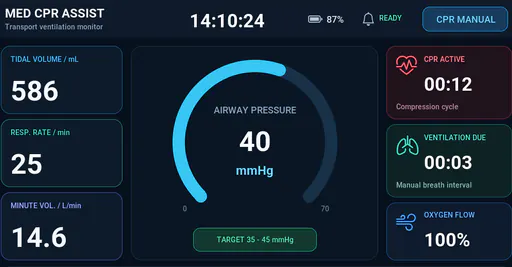
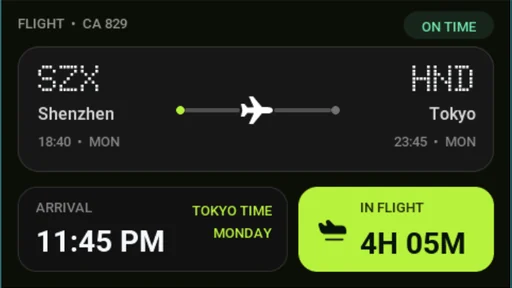
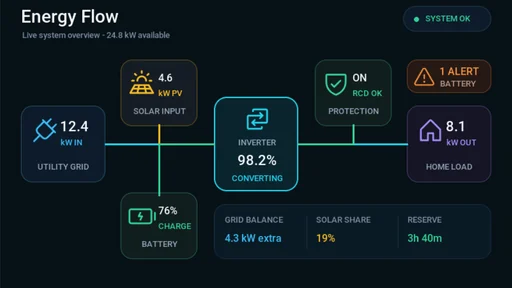
Trzy projekty interfejsów urządzeń, które możesz otworzyć w edytorze, obejrzeć i dalej rozwijać.
Zobacz wszystkie przykładyPicoPixel LVGL MCP is an MCP server that connects your AI assistant to the PicoPixel LVGL editor through the Model Context Protocol (MCP). It lets your assistant inspect, create, and edit native LVGL screens, widgets, and resources in your active project, so you can describe what you want and see the result on your canvas.
Your assistant can inspect existing screens, create and arrange LVGL widgets, adjust layouts and styles, work with fonts and icons, and create reusable components and color themes. Changes are made directly in your PicoPixel project and remain editable.
Choose your assistant in the setup section above and follow its connection steps. Depending on the client, you can sign in through a connector or use the personal MCP server URL from your PicoPixel account’s Integrations settings. Then open the project you want to work on. Read the PicoPixel LVGL MCP setup and agent settings guide.
The setup guide covers Claude, ChatGPT, Cursor, Claude Code, OpenClaw, Hermes, and Grok Bot. Other MCP-capable clients can use the general setup instructions with the connection details from your PicoPixel account.
Yes. Keep the project you want your assistant to work on open in a signed-in PicoPixel browser tab. MCP works with the active file through that tab, so the editor needs to stay connected while your assistant reads or changes the design.
Yes. Read-only mode lets your assistant inspect the project without changing it. To create or edit a design, enable write access in PicoPixel. Your assistant also needs your account to have edit permission for the active file.
Yes. MCP creates and updates native PicoPixel screens and widgets. You can review the result on the canvas, adjust it manually, undo changes, or ask your assistant to refine it further.
Yes. Different account types have different MCP call limits to help our servers maintain a responsive, reliable experience for all users. View the call limits for each account type on the pricing page.