Overview
The Flight Tracker is a free LVGL travel-status dashboard template for a compact 480 x 272 landscape display. It condenses a flight identifier, on-time state, departure and arrival airports, route progress, arrival time, local day, and remaining duration into one readable screen.
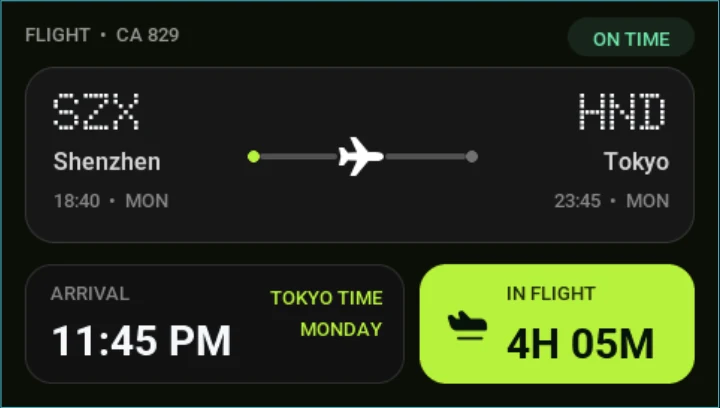
The sample route shows flight CA 829 traveling from SZX in Shenzhen to HND in Tokyo. A central airplane and progress line connect the two airports, while separate cards summarize an 11:45 PM arrival and 4H 05M remaining in flight. The dark interface uses white text, muted gray details, and a bright lime status card to create a clear scan order on a small panel.
The template is a visual starting point, not a live aviation service. It does not include a flight-data API, network requests, automatic refresh, location tracking, configured events, or animations. All route details and times in the preview are illustrative.
What's included
- One 480 x 272 LVGL screen, designed for a wide compact display.
- Flight identifier, shown as
FLIGHT • CA 829. - On-time badge, positioned at the top-right for quick status recognition.
- Departure details, including the
SZXairport code, Shenzhen,18:40, and Monday. - Arrival details, including the
HNDairport code, Tokyo,23:45, and Monday. - Route progress graphic, with departure and arrival dots, two track sections, and a central airplane.
- Arrival card, displaying
11:45 PM,TOKYO TIME, andMONDAY. - In-flight status card, showing an airplane icon and
4H 05Mduration. - Three imported travel icon assets.
- Four converted font assets, combining Doto airport-code lettering with Roboto interface text.
The screen has no built-in interaction or navigation. It is ready to customize as a focused status display or to place inside a larger travel application.
Flight overview layout
The top row establishes flight identity and punctuality before the user reaches the route details. The muted identifier remains easy to find without competing with the airport codes, while the green ON TIME badge gives the current sample status a dedicated area.
The main route card holds the core journey information. Departure content is aligned to the left and arrival content to the right, mirroring the direction of travel. Large dotted airport codes act as visual anchors, with city names and scheduled times beneath them.
The route progress graphic occupies the center of the card. A lime departure dot, gray arrival dot, two track sections, and airplane icon create a compact position indicator without requiring a map. This pattern is useful on small embedded displays where a geographic route would consume too much space or require more graphics memory.
The lower row separates two different time questions:
- When will the flight arrive? The left card answers with the arrival time, local-time context, and weekday.
- How much time remains? The lime card answers with the in-flight duration.
Giving those values separate cards prevents the arrival clock and remaining duration from being confused, especially when the origin and destination use different time zones.
Visual hierarchy and states
The screen uses a restrained dark palette. Most surfaces are nearly black, card outlines are subtle, and secondary text is gray. White is reserved for high-value route information such as airport codes, city names, arrival time, and duration.
Lime green has three jobs in the sample state:
- It marks the departure side of the progress line.
- It highlights local destination-time context.
- It fills the in-flight status card.
The on-time badge uses a darker green treatment, keeping it distinct from the more prominent duration card. For a real interface, define separate styles for on time, delayed, boarding, departed, arrived, diverted, cancelled, unavailable, and stale data. Do not communicate those states by color alone; keep an explicit text label.
Asset snapshot
The PicoPixel local library contains:
- Images:
0. - Animated images:
0. - Icons:
3. - Colors:
0, with the current palette applied directly to objects. - Fonts:
4. - Components:
0.
The three icon assets are:
Airplane In Flight— 28 x 28Route Airplane Sharp— 32 x 32Route Arrow— 24 x 24
The visible screen uses the two airplane assets for route progress and the in-flight card. The additional route arrow remains available in the library for navigation or a more explicit direction indicator.
The four included font assets are:
Flight Roboto Medium 13 500Flight Roboto Semibold 16 600Flight Roboto Bold 28 700Doto 700 34
Doto gives SZX and HND the dotted terminal-board character, while Roboto handles the supporting labels, cities, times, status, and duration. The three Roboto conversions include Latin-1, Latin Extended-A, and the bullet character used in the flight identifier.
Editable LVGL structure
The dashboard is composed from ordinary LVGL-friendly objects. Flight Overview is the screen frame. Route Card, Arrival Card, and Flight Status Card are containers, while the airport codes, cities, times, captions, flight state, duration, and identifier are separate labels.
The route graphic is also editable. It uses departure and arrival dot containers, left and right track containers, and a separate airplane image. That allows firmware to change the visible progress position, recolor a section, or replace the plane without regenerating the entire route card.
Meaningful names such as Departure Airport Code, Arrival Airport Code, Arrival ETA, Tokyo Time Caption, On Time Status, and Flight Duration make the important data targets easy to identify. The supplied project has no configured events or animations, so any moving progress indicator or screen interaction must be added separately.
Why this works well for LVGL
The design maps cleanly to a small embedded application:
- Labels carry all route and time data, making updates straightforward.
- Containers organize the route, arrival, and duration summaries without complex layout graphics.
- The route track is built from small objects, avoiding a full-width bitmap.
- Compact icons add travel context with minimal asset overhead.
- The fixed 480 x 272 canvas suits small landscape panels where vertical space is limited.
- Text labels reinforce status colors, improving accessibility and clarity.
This structure can be used with ESP-IDF, Arduino, PlatformIO, STM32, Zephyr, or another LVGL environment. The display code should receive a normalized flight snapshot from a separate application layer rather than performing network and parsing work directly inside UI callbacks.
Connecting live flight data
A live implementation needs a trusted source for flight identity, airport codes, city names, scheduled and estimated times, operational status, and progress. Normalize timestamps and time zones before sending values to the UI, and keep a visible last-updated or unavailable state when the source cannot be reached.
A small LVGL presentation function could look like this:
static void flight_ui_set_status(const char * flight_number,
                                 const char * status,
                                 const char * arrival_time,
                                 const char * remaining)
{
    lv_label_set_text_fmt(ui_flight_identifier, "FLIGHT • %s", flight_number);
    lv_label_set_text(ui_on_time_status, status);
    lv_label_set_text(ui_arrival_eta, arrival_time);
    lv_label_set_text(ui_flight_duration, remaining);
}
This example only updates visible labels. It does not fetch data, calculate an aircraft position, handle time zones, or confirm operational accuracy. Any real departure, gate, delay, cancellation, or arrival decision should be checked against the airline or airport’s official information.
Customizing the template
- Replace the sample flight number, airports, cities, times, and weekday.
- Rename
Tokyo Timeto a dynamic destination-time label. - Add a last-updated timestamp or stale-data badge.
- Define specific treatments for delayed, boarding, departed, arrived, diverted, and cancelled states.
- Move the route airplane based on normalized progress, or keep it centered when real position is unavailable.
- Use the bundled route arrow to make direction more explicit.
- Add gate, terminal, baggage, or connection information only when the screen remains readable.
- Convert the lower status card to boarding countdown, delay duration, or connection time for another use case.
- Adjust fonts if translated city or status names need more width.
- Rename the important objects before export to match your firmware conventions.
Exporting to your project
Open the template in PicoPixel, replace the sample route, and confirm that 480 x 272 matches the target panel. Then export the UI, icons, and fonts as LVGL C and connect the named labels to your application’s verified flight snapshot.
A practical workflow is:
- Open the template in PicoPixel or download the
.picopixelproject. - Define the flight fields, time-zone behavior, refresh interval, and unavailable states.
- Rename the route, status, arrival, and duration objects.
- Add loading, stale, disconnected, and error treatments.
- Export the UI and integrate it with your LVGL application.
- Fetch and normalize flight data outside the generated screen code.
- Update the labels and route progress from a presentation layer.
- Verify long airport names, status text, time formats, and readability on the physical display.
For the import workflow, see How to use PicoPixel templates. For a broader embedded integration walkthrough, read the ESP32 LVGL UI tutorial.
Best uses
This template is a useful starting point for:
- Embedded flight-status displays
- Airport arrival and departure panels
- Desk travel trackers
- Airline itinerary screens
- ESP32 and STM32 travel dashboards
- Smart-home departure reminders
- Compact 480 x 272 display projects
- LVGL route-progress examples
- Time-zone and arrival-time prototypes
- Dark travel interface design studies
Its strongest feature is the compact information hierarchy: route, status, arrival time, and remaining duration are all visible without turning the small screen into a dense table.