개요
PicoPixel은 LVGL을 위한 ultimate editor입니다. Figma 같은 workspace에서 embedded UIs를 시각적으로 만들 수 있고, LVGL projects가 실제로 배포되는 방식에 맞춰 reusable components, libraries, assets, collaboration tools를 제공합니다.
PicoPixel에서 UI를 만들면 C code를 export하고 LVGL을 실행할 수 있는 거의 모든 디바이스에서 사용할 수 있습니다. PicoPixel은 현재 LVGL 8.x를 지원하며 LVGL 9 support is planned입니다.
Templates, UI kits, examples, sprites, widgets, full apps는 이 workflow의 시작점입니다. 일부는 PicoPixel development team이 만들고, 일부는 users와 wider community가 만듭니다. 공유할 만한 것이 있다면 How to submit a template을 보세요.
template의 실제 의미
PicoPixel template은 그저 .picopixel 파일입니다. 뒤에 숨은 마법은 없습니다. 자신의 workspace에서 export할 수 있는 것과 같은 종류의 파일입니다.
즉 template에는 screens, LVGL widgets, reusable components, colors, fonts, images, animated images, sprites 및 기타 assets가 들어갈 수 있습니다. 열거나 import한다고 원래 디자인에 묶이는 것이 아닙니다. 편집하고, 줄이고, 일부를 다른 파일로 복사하고, team library로 publish하거나 LVGL C code로 export할 수 있습니다.
중요한 생각은 이것입니다. template은 screenshot이 아닙니다. 자신의 LVGL workflow 일부가 될 수 있는 편집 가능한 PicoPixel project file입니다.
templates를 찾는 곳
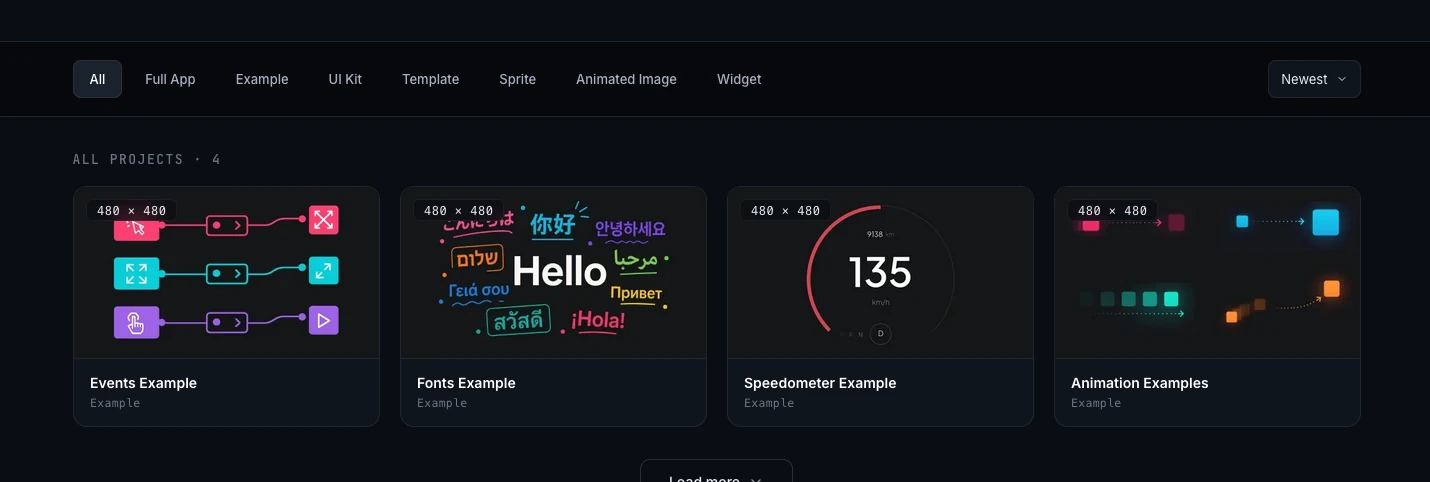
주요 탐색 위치는 PicoPixel templates gallery입니다. project type으로 gallery를 필터링하고, project detail page를 열고, 포함된 것을 preview하고, PicoPixel로 가져오는 방식을 선택할 수 있습니다.
GitHub에서도 같은 파일 모음에 접근할 수 있습니다.
파일을 직접 다운로드하거나, project history를 확인하거나, .picopixel files를 다른 project assets와 함께 보관하고 싶다면 GitHub가 유용합니다.
알맞은 시작점 고르기
gallery에는 여러 종류의 파일이 있습니다. 빌리고 싶은 것에 따라 선택하세요.
- Full App, 완전한 app project입니다. 미래에는 더 많은 full app entries가 firmware binary를 포함해 hardware flash를 더 쉽게 할 수도 있습니다. 지금은 UI file을 열고 customize한 뒤 자신의 firmware용 UI code를 export하는 데 집중하세요.
- Example, 하나의 workflow, widget, layout, interaction pattern을 보여 주는 focused reference project입니다.
- UI Kit, 여러 products에 맞춰 조정할 수 있는 reusable components, styles, screens, assets 세트입니다.
- Template, 자신의 interface로 customize할 수 있는 ready-made screen 또는 project layout입니다.
- Sprite, 재사용 가능한 animated, multi-state LVGL widget입니다. PicoPixel에서 sprites가 작동하는 방식은 What is a sprite?를 보세요.
- Animated Image, LVGL animated image frames를 중심으로 만든 file 또는 example입니다. 자세한 내용은 Working with the LVGL Animated Image Widget을 보세요.
- Widget, 더 큰 UI에 넣을 수 있는 customized LVGL widget 또는 component입니다.
어디서 시작해야 할지 모르겠다면 behavior를 배우고 싶을 때 example, reusable building blocks가 필요할 때 UI kit, 만들려는 것에 가까운 screen이 필요할 때 template을 사용하세요.
파일 열기 또는 import하기
templates gallery에서 유용해 보이는 project를 클릭합니다. preview, metadata, gallery images, action buttons가 있는 project detail page로 이동합니다.
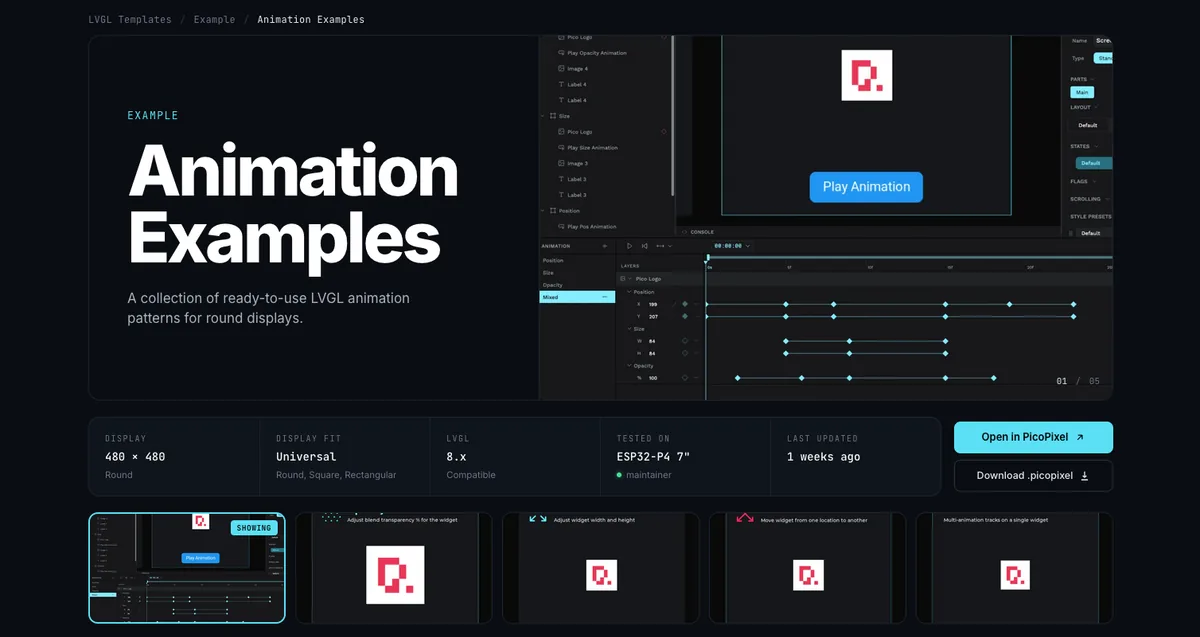
파일을 PicoPixel workspace에 추가하는 일반적인 방법은 세 가지입니다.
- Open in PicoPixel을 클릭합니다. PicoPixel이 editor에서 바로 파일을 열게 하고 싶을 때 가장 빠른 경로입니다.
- Download .picopixel을 클릭합니다. 파일을 로컬에 저장해 나중에 import하거나 backup으로 보관하거나 firmware project와 공유할 수 있습니다.
- GitHub에서
.picopixel파일을 다운로드한 뒤 PicoPixel에 drag and drop하거나 editor에서 import합니다.
파일이 PicoPixel 안에 들어오면 다른 PicoPixel project처럼 동작합니다. 이름을 바꾸고, 복제하고, screens를 편집하고, assets를 교체하고, fonts를 바꾸고, colors를 조정한 뒤 준비되면 export합니다.
안에 있는 것 재사용하기
template이 import되면 기본적으로 자유롭게 다룰 수 있습니다. 전체 파일을 starting project로 쓰거나 parts의 library처럼 사용할 수 있습니다.
많은 파일에는 images, colors, fonts, animated image frame sets, components 같은 재사용 가능한 assets가 들어 있습니다. Assets tab을 열면 파일과 함께 온 내용을 볼 수 있습니다.
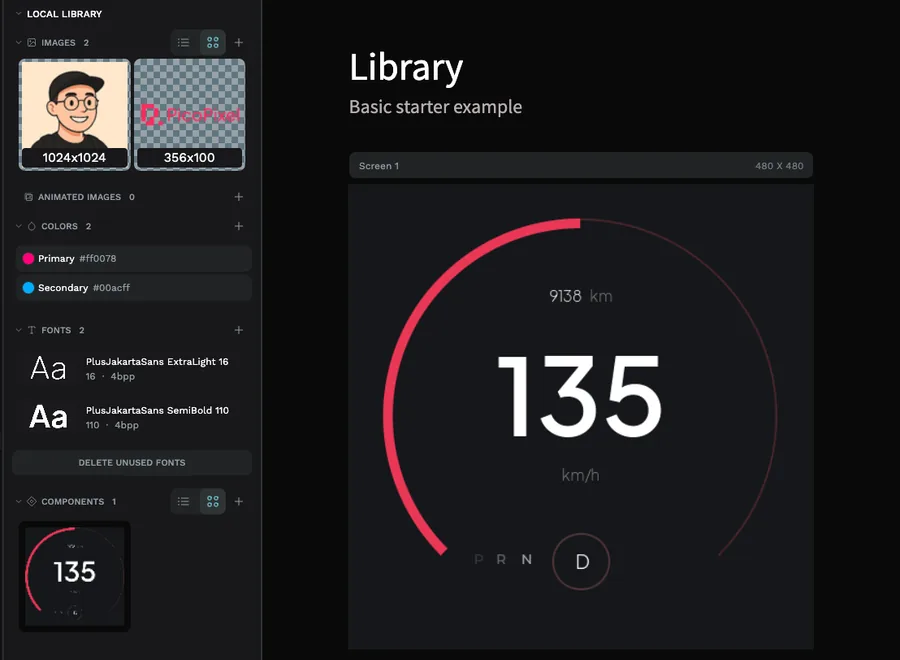
파일에 reusable LVGL widgets 또는 components가 있다면 team library로 만들고 다른 파일에서 link할 수 있습니다. UI kits와 widget packs에 특히 유용합니다. source file을 main library로 유지한 뒤 각 product UI로 components를 가져옵니다.
전체 workflow는 Guide to libraries and reusable LVGL components in PicoPixel을 읽어 보세요. local libraries, published team libraries, linked libraries, component updates가 파일 사이에서 어떻게 이동하는지 설명합니다.
디바이스로 export하기
UI가 준비되면 PicoPixel에서 LVGL C code를 export하고 보드 firmware와 통합합니다. firmware와 LVGL configuration이 사용한 widgets와 assets에 맞게 설정되어 있다면, export된 UI는 LVGL을 지원하는 거의 모든 디바이스에서 실행될 수 있습니다.
메모리에 주의하세요. 큰 images, animated image frames, sprites, 큰 fonts, 복잡한 full-screen layouts는 작은 보드의 기본값보다 더 많은 RAM과 flash를 요구할 수 있습니다. PicoPixel에서는 잘 보이는데 flash 후 나타나지 않는다면 LVGL configuration, image sizes, color depth, heap allocation, display buffer setup을 확인하세요.
Templates는 시작점이지 hardware 보장이 아닙니다. 특히 animated images, sprites, 큰 fonts, 많은 image assets를 사용할 때는 export한 UI에 충분한 RAM과 flash가 보드에 있는지 항상 확인하세요.
공유와 권한
Community templates는 PicoPixel team과 users가 모두 만듭니다. 자신의 파일을 공유하고 싶다면 How to submit a template을 따라 PicoPixel team이 review에 필요한 file path, credits, description, permissions를 받을 수 있게 하세요.
submissions와 imports에 대해서는 Terms와 Privacy Policy를 검토하세요. images, icons, fonts, screenshots, brand assets를 포함해 소유하거나 공유 허가를 받은 content만 제출하세요.
public template 또는 다른 community item이 있어서는 안 될 것처럼 보이면 How to report content를 보세요.
다음 단계
- Templates gallery, 사용 가능한
.picopixelfiles 둘러보기 - How to submit a template, 자신의 PicoPixel file을 community와 공유하기
- Guide to libraries and reusable LVGL components in PicoPixel, imported components를 파일 사이에서 재사용하기
- What is a sprite?, multi-state animated widgets가 작동하는 방식 배우기
- Working with the LVGL Animated Image Widget, frame-based LVGL animations 이해하기