Overview
A template is one of your PicoPixel files, shared so other people can open it as a starting point. Instead of building a screen from scratch, they begin with your layout, widgets, and styling already in place.
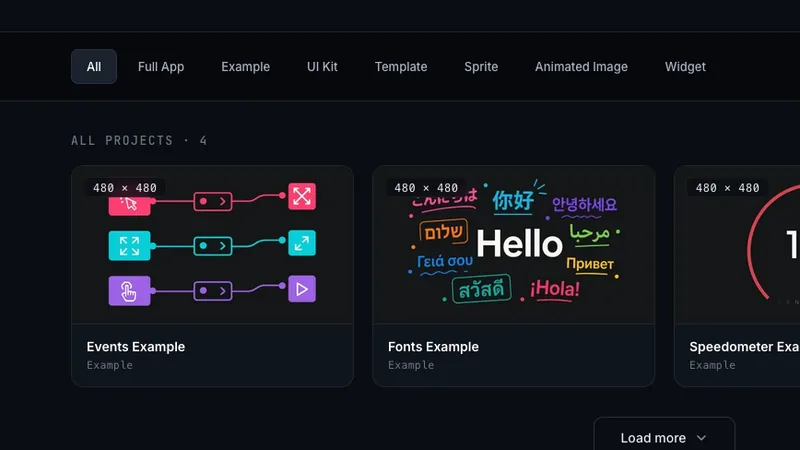
Templates are submitted through GitHub. You create a public repo containing your .picopixel file, any images you want to showcase, and a README that describes the template. Once accepted, your template appears in the community Templates gallery where anyone can browse and use it, with your credit attached.
This guide walks through setting up your repo, filling out the submission form, the rights you grant, and how to give your submission the best chance of being accepted.
Before you start
You'll need two things ready before submitting.
- A GitHub account. Your template repo must be hosted on GitHub. If you don't have an account, create one first.
- A finalized design. Make sure you're happy with your
.picopixelfile before you submit. Export it from the PicoPixel app and have it ready to add to your repo.
You must be signed in to the PicoPixel app to access the submission form. Open the PicoPixel app and sign in with Google or GitHub if you haven't already.
Setting up your GitHub repo
Create a new public GitHub repository for your template submission. The repo should contain three things:
1. Your .picopixel file
Place your .picopixel design file in the root of the repo. This is the file people will download and open in PicoPixel, so make sure it's the final version.
2. Showcase images
Add any images you'd like displayed alongside your template in the gallery. These help people see what the design looks like before they download it.
- Put images in the root of the repo or in a folder like
images/. - Use common formats:
.png,.jpg, or.webp. - Include at least one screenshot of your design in action. Multiple angles or screens are even better.
- Keep images a reasonable size — large enough to see detail, but not unnecessarily huge.
3. A README
Write a README.md in the root of the repo. This is used as the template's description in the gallery, so treat it as the public-facing page for your template.
A strong README should cover:
- What the template is — a brief summary of the design and what it's for.
- Target resolution and hardware — the board or display it's built for, so people know it fits their setup.
- What's included — list the screens, widgets, and key features. For example: "two screens: a home dashboard and a settings page, with sliders, toggles, and a clock widget."
- Credits — if you used any third-party assets you're licensed to share, name them and their source.
Picture someone landing on your template in the gallery with no other context. If your README answers "what is this and will it work for me?", it's doing its job.
Here's a minimal example:
# Weather Dashboard Template

A clean two-screen weather dashboard designed for 320×240 TFT displays.

## What's included

- **Home screen** — current temperature, humidity, and a 3-day forecast row
- **Settings screen** — unit toggle (°C/°F), update interval slider, and Wi-Fi status

## Built for

- 320×240 resolution
- ILI9341 or similar TFT displays

## Credits

Weather icons from [Meteocons](https://bas.dev/work/meteocons) (MIT license).Filling out the form
Once your repo is ready, head to the submission form.
- Open the PicoPixel app and sign in.
- Click your account at the bottom of the left sidebar, then choose Your account.
- In the Your-account sidebar, open Submit Template.
The form has three fields:
- GitHub Repo Link — the URL of your public GitHub repository (e.g.
https://github.com/yourname/my-template). The repo must be public so the review team can access it. Double-check that the repo contains your.picopixelfile, images, and README before submitting. - Author / Credits — the name you want shown as the template's creator. Add anyone who should be credited alongside you.
- Notes (optional) — anything the review team should know that isn't in your README. For example, if certain images shouldn't be used in the gallery listing, or if there's context about the design that doesn't belong in the public description.
When everything looks right, submit the form.
Rights and permissions
Submitting a template grants real permissions, so read this carefully before you send.
Do not submit any material that contains copyrighted content or content you do not own. Everything in your repo — the .picopixel file, images, fonts, icons, and any other assets — must be entirely your own original work or material you have explicit permission to share publicly.
By submitting, you grant PicoPixel permission to access, download, and publish the contents of your repository publicly in the community templates gallery. Published templates are made available without any copyright restrictions or licensing requirements, so that anyone can freely use them in their own projects, including for commercial use. Your credit is shown, but the template itself is free for others to use however they like.
This means you should only submit work you are comfortable sharing on those terms. If any part of your design uses an asset you didn't create — a font, icon set, image, or anything else — and you aren't certain you can share it freely and without restriction, remove it before submitting. When in doubt, leave it out: a clean template is far more useful to others than one that has to be pulled later.
PicoPixel may remove content that infringes third-party rights. See the Terms.
What happens next
After you submit, the PicoPixel team clones your repo and reviews the template. Review checks that the .picopixel file opens correctly, that the images and README are appropriate, and that the submission meets the Terms.
The team may follow up if something needs clarifying or fixing. Once it passes review, the template is published to the Templates gallery with your credit shown and your README as its description. From there, anyone can open it as a starting point for their own design.
Keep your repo around after submitting. If you need to update your template later — fix a bug, swap an image, or improve the description — you can update the repo and let the team know.
If a published template ever needs to be corrected or taken down (yours or someone else's), see How to report content.
Where to go next
- Templates gallery, browse community templates
- How to submit a pet, share an animated sprite instead
- How to report content, flag a problem with a pet or template
- Terms, the rules that apply to submissions