Overview
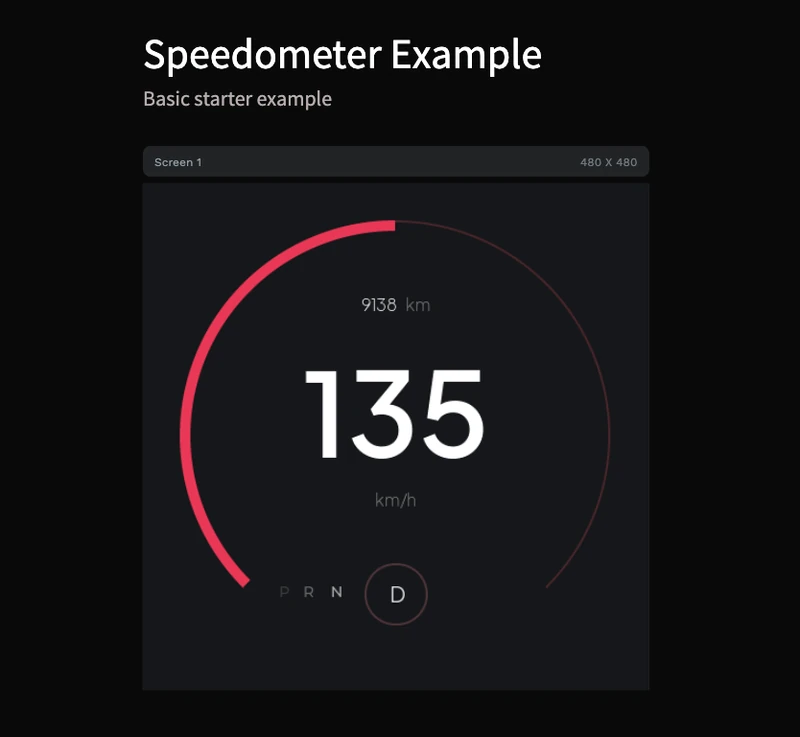
Looking for a free LVGL speedometer example? This PicoPixel template gives you a ready-to-open 480 x 480 dashboard gauge built from standard LVGL-friendly pieces: an arc-based speed ring, a large numeric speed readout, odometer text, a unit label, and compact PRND drive-state labels.
The project is intentionally simple and easy to modify. Use it as a starter for an ESP32 vehicle dashboard, e-bike display, scooter cluster, RC controller, simulator panel, industrial motor gauge, or any embedded UI where a live value needs to feel like a real instrument.
Because the design is made from labels, containers, fonts, and an LVGL arc instead of a baked image, it is a practical base for exporting clean LVGL C code and wiring the values to your own sensor, CAN bus, GPS, motor controller, or demo data source.
What's included
- 480 x 480 dashboard screen, sized for square canvases and easy to adapt to round displays.
- LVGL arc gauge, using the arc widget as the main speed ring so the indicator can be updated from code.
- Large numeric speed label, shown as
135in the preview for a strong instrument-cluster focal point. - Unit label, currently
km/h, ready to change tomph,%,RPM,W, or any other measurement. - Odometer group, shown as
9138 km, useful for mileage, trip distance, runtime, battery range, or another secondary metric. - PRND drive labels, with
Dhighlighted in a circular state indicator. - Dark embedded-dashboard styling, with high contrast white typography and a red/pink gauge accent.
- No image dependency, so the UI stays lightweight and editable as LVGL objects.
- Three bundled font styles, matching the screenshot's Plus Jakarta Sans text hierarchy.
- One reusable widget asset, visible in the template's local library for quick reuse inside other PicoPixel projects.
Asset snapshot
The template is deliberately lean. In the assets panel, the local library shows:
- Images:
0, the gauge is not a static screenshot. - Colors:
0, the current palette is applied directly in the design. - Fonts:
3, using Plus Jakarta Sans at multiple sizes. - Widgets:
1, a reusable speedometer widget preview that can be dropped into another project.
The bundled font set is sized for the visual hierarchy in the gauge:
-
PlusJakartaSans ExtraLight 16, used for small secondary text like the odometer suffix. -
PlusJakartaSans Light 20, used for supporting labels such askm/hand drive-state text. -
PlusJakartaSans SemiBold 110, used for the large center speed value.
That means the LVGL export can stay focused on editable primitives: labels, containers, an arc, and fonts, without carrying unnecessary image assets.
LVGL-focused structure
The screenshot shows a small, export-friendly hierarchy rather than a bitmap-heavy mockup. The design is built around one screen, containers for grouping, several labels, an odometer group, and the main arc.
-
Screen 1is the 480 x 480 canvas. - A root container holds the gauge layout and keeps the dashboard centered.
- The odometer text is grouped so the number and
kmsuffix can move together. - The center speed value is a large label, which makes runtime updates straightforward with
lv_label_set_textorlv_label_set_text_fmt. - The main gauge is an LVGL arc, so the same visual can be driven by
lv_arc_set_value. - The PRND row is made from labels, with the active drive state emphasized by a small circular container.
This is the kind of structure you want for an LVGL speedometer template: the dial is editable, the text is live, and the exported code can stay close to normal LVGL patterns.
Before exporting, rename the important objects in PicoPixel, for example speed_arc, speed_value_label, unit_label, odo_label, and drive_state_label. Clear names make the generated LVGL C much easier to update from your firmware.
Why this works well for LVGL
This example is useful as more than a pretty screenshot. It is designed around things LVGL is good at rendering on embedded hardware.
- Arc rendering is native to LVGL, so the speed ring does not require a large transparent image.
- Labels are cheap to update, which is ideal for changing speed, distance, battery range, or mode text.
- The visual state is explicit, so your firmware can update the arc value, center label, odometer, and drive selection independently.
- The design is compact, with no imported image assets and only the fonts needed for the dashboard look.
- It exports as standard LVGL 8.x UI code, so you can integrate it into ESP-IDF, Arduino, PlatformIO, STM32, Zephyr, or another LVGL project.
Customization ideas
Use this as a free LVGL gauge starting point, then tune the details for your own product or demo.
- Change the speed range from a road-speed scale to
0-100,0-240,0-8000 RPM, battery percentage, throttle position, or temperature. - Adjust the arc thickness, start angle, end angle, and color to match your display shape.
- Swap the red/pink accent for brand colors, warning colors, or range-based colors.
- Replace
km/hwithmph,RPM,%,W,V,A,C, orF. - Use the odometer row for trip distance, uptime, remaining range, lap count, or total energy.
- Replace PRND with custom modes like
ECO,SPORT,PARK,AUTO, orMANUAL. - Add small icons, a battery bar, warning indicators, turn-signal states, or a second arc for RPM.
- Animate value changes with an LVGL timer or animation callback instead of jumping the label instantly.
Wiring live data
After exporting from PicoPixel, keep the generated UI files in your project and update the named objects from your firmware loop, event handler, or LVGL timer. The exact object names depend on what you name the widgets before export, but the runtime pattern looks like this:
static void dashboard_set_speed(int speed_kph, uint32_t odometer_km)
{
    lv_arc_set_value(ui_speed_arc, speed_kph);
    lv_label_set_text_fmt(ui_speed_value_label, "%d", speed_kph);
    lv_label_set_text_fmt(ui_odo_label, "%lu km", (unsigned long)odometer_km);
}
If your speed comes from GPS, CAN, UART, BLE, a motor controller, or simulated data, keep the hardware-specific parsing outside the UI code. Let the UI function receive clean values and only handle the LVGL updates.
Exporting to your project
Open the template in PicoPixel, adjust the display size if needed, rename the key widgets, then export the project as LVGL C code. The generated files can be added to an existing embedded project just like any other LVGL UI.
For ESP32 projects, the usual flow is:
- Configure your display and touch/input drivers.
- Export the PicoPixel UI as LVGL C.
- Add the exported files to your ESP-IDF, Arduino, or PlatformIO project.
- Call
ui_init()after LVGL and your display driver are ready. - Update the speedometer values from your telemetry loop, event queue, or
lv_timer.
For a broader walkthrough, see the ESP32 LVGL UI tutorial and the guide on using PicoPixel templates.
Best uses
This template is a good fit when you need a fast visual starting point for:
- LVGL speedometer demos
- ESP32 dashboard prototypes
- Round-display vehicle clusters
- E-bike, scooter, go-kart, or RC telemetry screens
- Industrial gauge panels
- Simulator dashboards
- Motor speed or RPM displays
- Battery range and drive-mode interfaces
It is also a good learning file if you want to see how an LVGL gauge can be built from normal widgets before you build a more complex instrument cluster.