Overview
Looking for a free LVGL fonts template or a multilingual text example for an embedded UI? This PicoPixel project shows how converted LVGL fonts, script-specific font choices, sizes, and colors come together on a 480 x 480 screen.
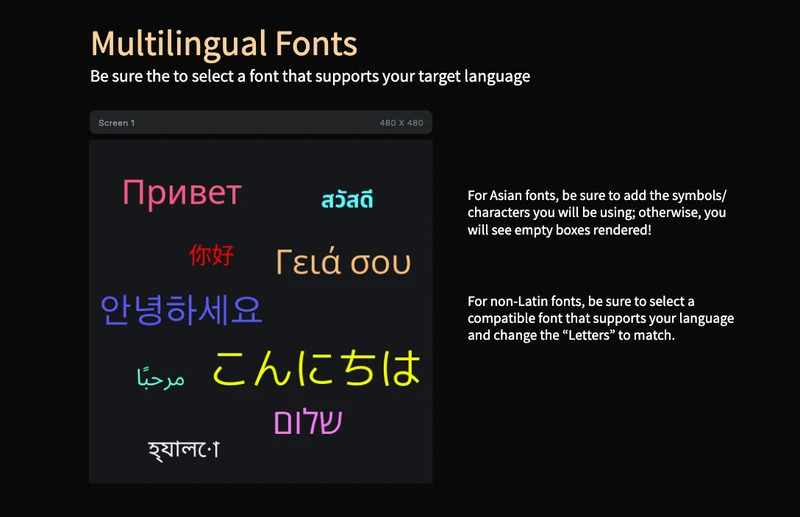
The template demonstrates several non-Latin writing systems in one place, including Cyrillic, Chinese, Japanese, Greek, Arabic, Korean, Hebrew, Thai, and Bengali. Use it as a starting point when you need an ESP32 dashboard, settings screen, kiosk UI, wearable menu, or smart-device interface that needs to display translated labels instead of only English text.
The main lesson is simple: LVGL fonts are not like desktop web fonts. A converted LVGL font contains the glyphs and sizes you choose. For Chinese, Japanese, and Korean, you normally should include only the exact characters your UI will display, otherwise missing characters can render as empty boxes. For the full workflow, see the PicoPixel guide to working with LVGL fonts.
What's included
- 480 x 480 multilingual typography screen, designed as a compact font test canvas.
- Nine visible text examples, covering Cyrillic, Chinese, Japanese, Greek, Arabic, Korean, Hebrew, Thai, and Bengali.
- Script-specific label layers, named in the layer panel so it is easy to see which text object belongs to which language.
- Ten converted font assets, showing how a real LVGL project may need several font families and sizes.
- No image dependency, so the project is focused on text rendering rather than bitmap screenshots.
- Mixed font sizes, including small body-style labels and larger display text.
- Mixed colors, making each script easy to inspect on the dark background.
- In-canvas font reminders, calling out the two big rules: choose a font that supports your target language, and include the characters your UI actually uses.
- Create Font panel example, showing bundled fonts, uploads, font size presets,
Letters,Asian, and advanced options.
Asset snapshot
The assets panel shows this as a font-focused PicoPixel template:
- Images:
0, the preview is built from editable text objects. - Colors:
0, colors are applied directly to the labels in the design. - Fonts:
10, enough to demonstrate multiple scripts, sizes, and font families. - Widgets:
0, keeping the example focused on text and font assets.
Visible font assets include:
-
Gothic A1 48 -
M PLUS 1p 60 -
Noto Sans Arabic 32 -
Noto Sans Bengali 32 -
Noto Sans Cyrillic 48 -
Noto Sans SC 32 -
Noto Sans Thai Bold 32 -
Open Sans Greek 48 -
Open Sans Hebrew 48
The list in the screenshot is scrollable, so the project contains one more font asset beyond the visible rows. The important pattern is that each script uses a font that actually contains the glyphs it needs.
Layer structure
The layer panel is set up like a language checklist. Under Screen 1, each label is named after the script or language it demonstrates:
-
Cyrillic - RU -
Chinese -
Japanese -
Greek -
Arabic -
Korean -
Hebrew -
Thai-na -
Bengali
That structure makes the file useful as a reference. If a language renders correctly, you can inspect the label, font asset, size, color, and text value, then copy the same approach into your own PicoPixel project.
CJK fonts and missing glyphs
Chinese, Japanese, and Korean fonts need special care in LVGL because the full character sets are enormous. Including every possible glyph can add megabytes to an embedded project, which is usually too much for small devices.
For CJK text, use the Asian option in PicoPixel's Create Font panel, then add the exact characters your interface will display in the Symbols field. Include every label, button, menu item, warning message, unit, and status string that can appear on screen.
If your UI later displays a Chinese, Japanese, or Korean character that was not included when the font was created, LVGL may render an empty box instead of the character. When your translated text changes, update the Symbols field and recreate the font.
The detailed walkthrough is in Working with fonts, especially the section on Chinese, Japanese, and Korean.
Choosing fonts for each script
Not every font supports every language. A Latin font may look perfect for English but contain no Arabic, Hebrew, Thai, Korean, Japanese, or Chinese glyphs. The template shows the safer approach: use font families that are designed for the script you are rendering.
- Use
Noto Sans SCor another CJK-capable font for Simplified Chinese. - Use a Japanese-capable font for Japanese text.
- Use a Korean-capable font such as Gothic A1 or another Hangul font for Korean text.
- Use
Noto Sans Arabicfor Arabic-script text. - Use
Open Sans Hebrewor another Hebrew-capable font for Hebrew. - Use a Greek-capable font for Greek.
- Use a Cyrillic-capable font for Russian and other Cyrillic text.
- Use Thai and Bengali-capable fonts for Thai and Bengali labels.
In the Create Font panel, the Letters dropdown controls non-CJK script coverage such as Greek, Cyrillic, Hebrew, Arabic, Thai, and more. The Asian dropdown is separate because CJK glyph sets are much larger.
Use the font preview field before creating the font. Paste the actual UI text you plan to render. If the preview shows boxes, switch to a font that supports that language before exporting.
Why this works well for LVGL
This template is useful because it matches how LVGL really handles fonts on embedded hardware.
- LVGL fonts are converted bitmap assets, so each selected size is generated separately.
- Only selected glyphs are included, which keeps firmware size under control.
- Script-specific fonts reduce missing glyphs, especially for non-Latin languages.
- Multiple sizes can coexist, so headings, body labels, and small captions can each use an appropriate font asset.
- The labels remain editable, so you can replace the sample text with your own translations before export.
- The project exports as standard LVGL 8.x UI code, including the font assets needed by the labels.
Runtime pattern
After exporting, your labels can still be updated from firmware. The exact generated symbol names depend on your PicoPixel object names and font names, but the LVGL pattern is familiar:
lv_label_set_text(ui_status_label, "Settings");
lv_obj_set_style_text_font(ui_status_label, &ui_font_noto_sans_32, 0);
For translated text, make sure the exported font contains every character you might pass to lv_label_set_text. This matters most for CJK strings and for dynamic status messages that are not visible on the initial design canvas.
Customization ideas
Use this as a free LVGL typography template, then adapt it for your own product.
- Replace the sample greetings with your real translated UI labels.
- Create one font per script and size that your interface actually needs.
- Reduce unused font sizes before export to keep firmware smaller.
- Use the same text layout to compare several font families before choosing one.
- Add right-to-left labels for Arabic, Persian, Hebrew, or other RTL interfaces.
- Create separate translated screens for language selection, settings, onboarding, or alerts.
- Use
Delete Unused Fontsafter experimenting so only referenced font assets remain.
Exporting to your project
Open the template in PicoPixel, inspect the font assets, replace the sample labels with your own text, and create any missing fonts before exporting. If you are working with Chinese, Japanese, or Korean, paste the exact UI strings into the Symbols field when creating the font.
For ESP32 projects, the usual flow is:
- Choose the languages your UI needs to support.
- Create compatible LVGL fonts for each script and size.
- For Chinese, Japanese, and Korean, include the exact characters your UI will display.
- Replace the sample labels in this template with your real UI text.
- Export the PicoPixel UI as LVGL C.
- Add the exported UI and font files to your ESP-IDF, Arduino, or PlatformIO project.
- Call
ui_init()after LVGL and your display driver are ready.
For the step-by-step font workflow, read Working with fonts. For importing and opening templates, see How to use PicoPixel templates.
Best uses
This template is a good fit when you want a clear starting point for:
- LVGL multilingual text examples
- CJK font setup for Chinese, Japanese, or Korean
- ESP32 translated UI prototypes
- Font conversion testing
- Missing-glyph debugging
- Right-to-left and non-Latin script checks
- International settings screens
- Kiosk, wearable, dashboard, and smart-device interfaces