Overview
Fonts on an embedded device don't work quite like fonts on your computer. This guide explains why, then walks you through creating fonts in PicoPixel, from picking a bundled font or uploading your own, to handling right-to-left languages like Arabic and Hebrew, to taming the very large fonts used for Chinese, Japanese, and Korean. Finally, we'll cover a handy cleanup feature for when you've been experimenting.
Why do fonts need converting?
On your laptop, a font file (like a .ttf or .otf) describes each letter as a set of mathematical curves. Your computer has plenty of power and memory to draw those curves smoothly at any size you ask for.
A small device (an ESP32, a smartwatch chip, a tiny display controller) usually can't do that. It doesn't have the memory or processing power to redraw curves on the fly. So LVGL takes a different approach: instead of curves, it stores each letter as a tiny pre-drawn picture (a bitmap) at a fixed size. That's much lighter for the device to handle.
PicoPixel does this conversion for you. When you create a font, we take the original font file and turn it into the bitmap format LVGL needs, picking out just the letters you want, at just the sizes you want.
Because each letter is pre-drawn at a fixed size, a converted LVGL font is locked to the size you chose. A 16px font can't be stretched to 32px and still look sharp. If you need text at two different sizes, you create the font at both sizes (see Creating a font below, where you can pick several sizes at once).
This is also why fonts have a real cost on a device: every letter, at every size, takes up a little space in memory. Most of this guide is about keeping that cost small, only including the characters and sizes you actually use.
Bundled fonts and your own
When you create a font, you have two starting points:
- Bundled, a curated set of popular, well-tested fonts ready to go: Noto Sans, Roboto, Open Sans, Montserrat, Poppins, Inter, Lato, Nunito, Source Sans 3, and more. These are a safe choice and a good default.
- Upload, bring your own
.ttfor.otffile. Use this when you have a specific brand font or a font that covers a language the bundled ones don't.
If you upload your own font, use a static font file (for example Roboto-Regular.ttf) rather than a "variable" font file (like Roboto-VariableFont.ttf). Static files convert far more reliably. Plain .ttf files tend to work best of all.
Whichever you pick, there's a live preview so you can type your own text and see exactly how it'll look before you create it.
Creating a font
Open the Create Font panel and you'll see a short form. Here's what each part does:
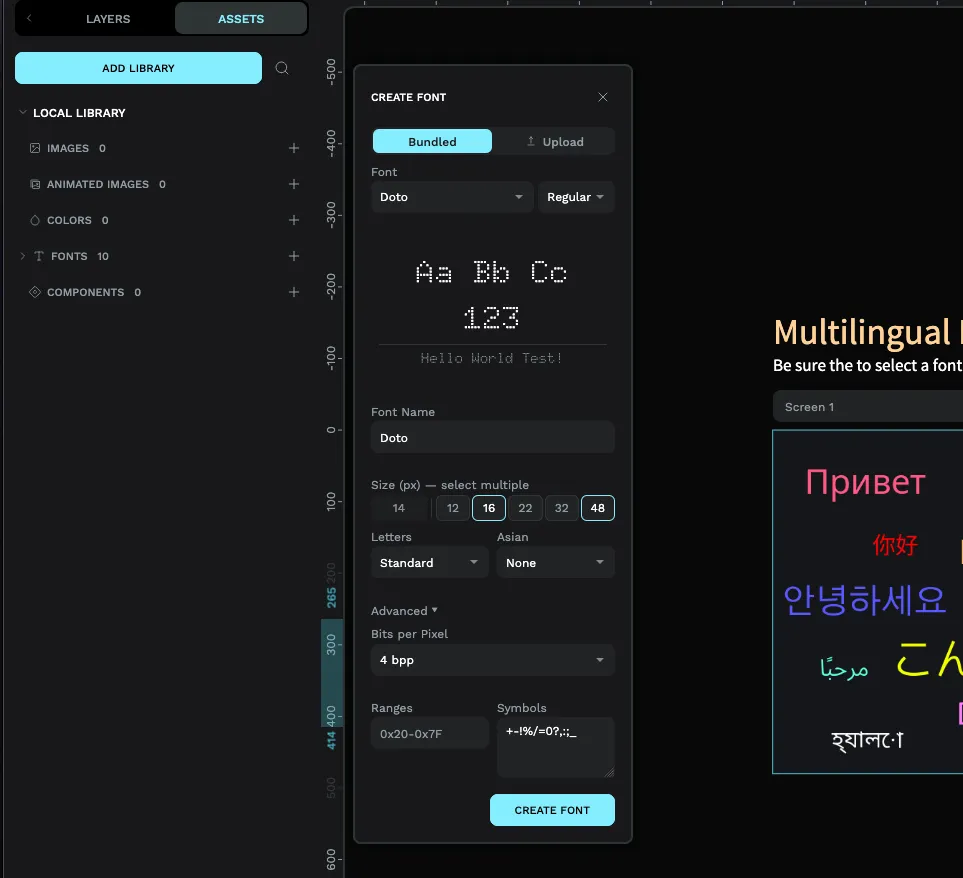
- Pick your font, choose a Bundled font (and its weight, like Regular or Bold), or switch to the Upload tab and select your own file.
- Font Name, the name you'll see in your project's font list. Give it something memorable, especially if you'll have several.
- Size (px), the pixel size of the font. You can select more than one size at once (handy presets like 16, 22, and 32 are one tap away). Remember each size is generated separately, so only pick the ones you'll really use.
- Letters, choose which set of characters to include: Standard (basic English), Latin, Greek, Cyrillic, Hebrew, Arabic, Thai, and several more. This is how you tell PicoPixel which language's letters you need.
- Asian, a separate option for Chinese, Japanese, and Korean. These need special handling, covered in its own section below.
There's also an Advanced area for fine-tuning, including Bits per Pixel (how many shades of grey each letter uses, higher looks smoother but takes more space; 4 is a good default) and fields to specify exact character ranges or symbols by hand. Most people never need to touch these.
Not every font includes every language. If you choose a non-Latin script and your preview shows empty boxes instead of letters, that font doesn't cover it, switch to a Bundled font designed for that script, or upload one that does. PicoPixel will warn you when you pick a script that not all fonts support.
Right-to-left scripts: Arabic & Hebrew
Languages like Arabic and Hebrew read right-to-left, and their letters need special treatment. The good news is you set this up right in the Create Font panel, there's nothing to configure by hand.
- In the Letters dropdown, choose Arabic or Hebrew. This is the important step: it tells PicoPixel to include the correct set of characters for that script (the basic English letters come along too, so numbers and Latin text still work).
- PicoPixel will suggest a font that's built for that script, for example, Noto Sans Arabic. Use the suggestion (or another script-aware font) rather than a plain Latin font, which won't contain the letters.
- Check the live preview. If the letters render correctly there, you're good. If you see boxes, the chosen font doesn't support the script, pick a different one.
Arabic letters change shape depending on where they sit in a word, and the whole line flows right-to-left. When you export your project, PicoPixel automatically detects that you've used Arabic, Persian, or Hebrew text and turns on the matching LVGL setting for connected letter shapes, so you don't have to dig through configuration files to make it look right on the device.
The key thing to remember: choosing Arabic or Hebrew in the Letters dropdown when you create the font is what pulls in those characters. If you create a plain font first and only later add right-to-left text, the letters won't be there, create the font with the right script selected from the start.
Chinese, Japanese & Korean
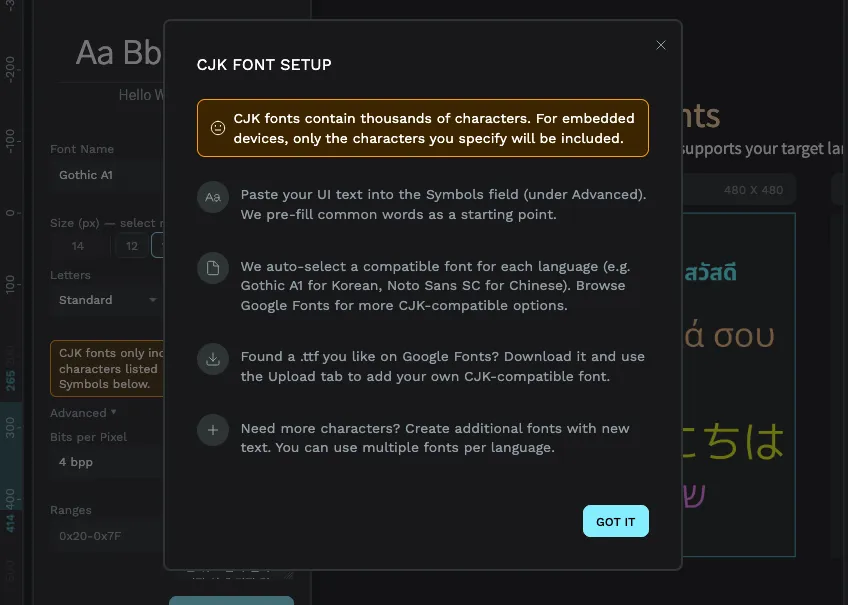
CJK is the common shorthand for Chinese, Japanese, and Korean. These languages are special because they have a lot of characters, Korean has around 11,000 and Chinese has well over 20,000. Remember that every character is pre-drawn and stored on the device. Including a whole CJK font could add megabytes, which simply won't fit on most embedded devices.
The solution is to only include the characters you actually use. A typical interface might only show a hundred or so different characters, and that's tiny by comparison.
Here's how to do it:
- In the Asian dropdown, choose Korean, Chinese, or Japanese.
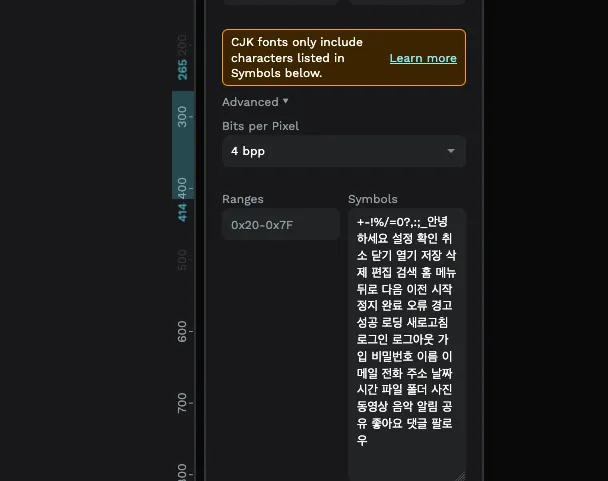
- Find the Symbols field (in the Advanced area) and paste in the actual text your interface will display, every label, button, and message. PicoPixel includes a glyph only for each character it finds there.
- To get you started, PicoPixel pre-fills this field with common interface words (like "Settings," "Confirm," "Cancel," and so on) in the language you picked. Add your own text to it.
That way a font that could have been several megabytes ends up at a few hundred kilobytes instead.
Only the characters you list in Symbols get included. If your interface later shows a character you didn't add, it'll appear as a blank box. When your text changes, come back and update the Symbols field, then recreate the font.
For CJK, uploading the specific font you want (rather than relying on a general one) gives you the most control, and pasting in a complete, final copy of your interface text means nothing gets missed.
Cleaning up: delete unused fonts
Fonts take up space, and it's easy to accumulate ones you no longer need, especially while you're experimenting. For example, you might not be sure whether 16px or 22px looks best, so you create both and try them out. Once you've decided, the other is just dead weight.
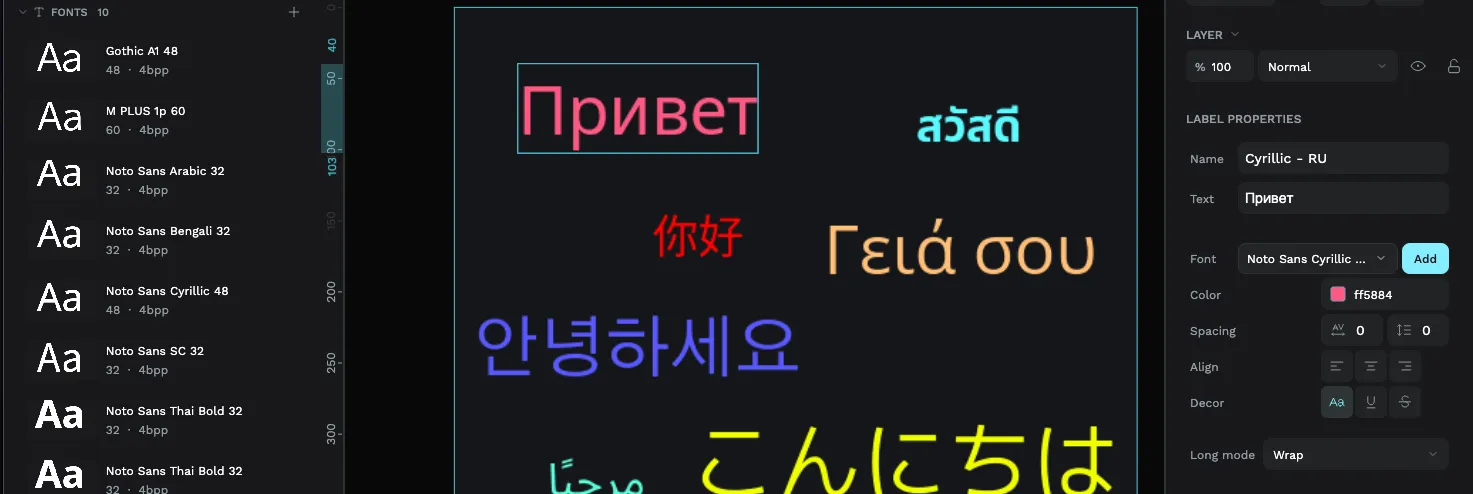
PicoPixel makes this painless. In the Fonts area of your assets, there's a Delete Unused Fonts button. It scans every widget in your project, finds the fonts that nothing is actually using, and removes them in one click, so you can clear out the leftovers and free up room for the fonts you do need.
This is the easy way to experiment with sizes. Create a few sizes, see which one looks right on your design, then hit Delete Unused Fonts to clean up the rest. Each font in the list shows its size and quality settings, so it's easy to see what you've got at a glance.
"Delete Unused Fonts" only removes fonts that no widget references, so your design won't change. You can also delete a single font yourself by right-clicking it in the list. If you remove something by accident, undo brings it right back.